FEATURED ARTICLE

The Problem of Pain

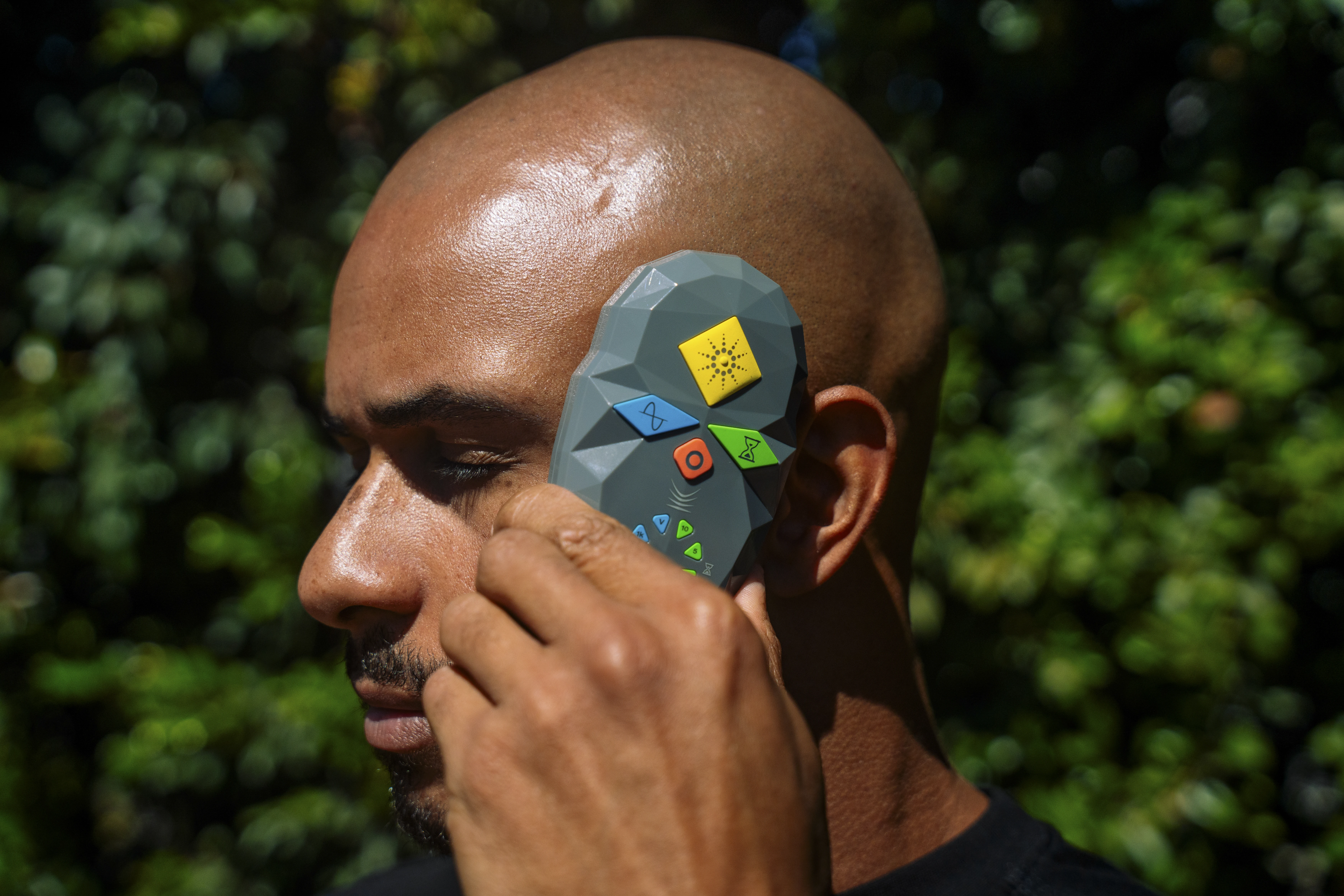
Chronic pain affects over 1.5 billion people globally, with traditional medications often causing significant side effects. coMra therapy presents a safer alternative by combining laser therapy with magnetism, ultrasound, and…

Read this article
The Problem of Pain
Browse our blog and see all articles

Customer services

Our customer services team are seasoned practitioners of coMra therapy with over a decade of experience.

If you're considering a coMra device – but have questions not covered in our extensive Resources and FAQ pages – please send us an email and we'll get back to you soonest:

info@comra-therapy.com

User support

If you already own a coMra device and need help with your device, with your treatments – or with any technical issues – please reach out to us here.

Click through on the link below, send us an email and we'll get back to you:

support@comra-therapy.com

Schedule a call

If you'd rather speak with one of our experienced customer service team members, you can schedule a call with us instead.

Please click through on the Calendly link below and one of our customer service team will get back to you:

calendly.com/comra-support-team

Chat with us

Alternatively, our customer service team are on hand to answer your queries between 9:00–5:00 EST.

Please click through on the link below, or simply click the floating Chat icon on the bottom right of the screen.

Chat with customer services now!
WARRANTY

Register your coMra device!

If you recently purchased one of our coMra devices, welcome to the family! Please fill out the registration form below to activate your warranty.

How do I find my serial number? Found on the sticker on the back of your original product box.

1.1.5. Delta operation Basics

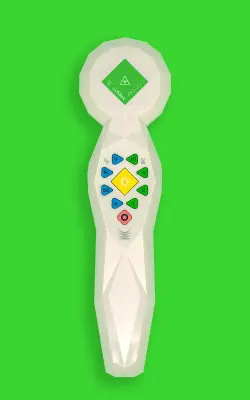
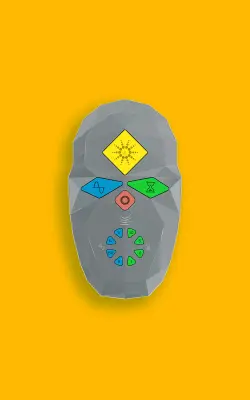
we're going to introduce the Delta handset. And once you have the terminal attached to the handset, this is what's used to control the settings for your treatments. So what you'll notice here, there's an on and off switch, a second switch that has both frequency and time settings, and then a third switch at the bottom for ultrasound settings on and off. And just to mention, you can operate the Delta either from USB port on your computer, your wall plug adapter that we showed earlier, as well as the battery that it's included as well. So the first thing we're going to look at is connecting power to the delta. And you'll notice here, we have a battery. On the one side, we have a large USB port and on the other side, we have a small one. We're going to use the large USB port right now. The small one is for the charging adapter. And so you simply insert the USB core into the battery and what you're going to notice is the on-off switch is going to power up as soon as we turn the battery on. You can see it here, the on-off switch lit up. Now, without power, once again, no on-off switch lit up. And with only the on-off switch illuminated, this is what we refer to as the standby mode. This next section, we're going to learn how to go from the standby mode to the normal ready state. So, you simply press the on/off switch and hold it for at least two seconds and you'll see the Delta handset power up. If you want to turn it back to the standby mode, you just press and hold it for another two seconds and now it's back in standby. Next, we have the ultrasound button. And so you'll see here we go to the normal ready state and then we can operate the ultrasound button. either on or off. When the ultrasound button is lit up, when you commence your treatment, there will be ultrasound. If the ultrasound button is not lit up, there will be no ultrasound when you start your treatment. This next section is going to be on the frequency and time settings or duration. And you'll notice the frequency setting is symbolized by the frequency symbol on the left and the time setting is symbolized by the hourglass on the right. And so if you look here, we start on the left-hand side at the 5 Hz setting, press the button 50 Hz, press it again, it goes to 1,000, and then finally goes to variable. And if we look on the right-hand side with the hourglass or time setting, you see here we started the 1-minute setting, then 2, then 5, then the 10-minute setting. One thing to note about the frequency and time button, if If you press it in the very center, it is a toggle switch. So you may get one side and or the other move at the same time. I'll demonstrate it here for you now so you see what I mean. So, it's clearly designed to work by pushing on either side of the toggle as you see here. When you have the delta in the normal ready state, as indicated here, and you push and release briefly the start stop button you're going to run a program. And while you're running a program, what you're going to notice is the indicating light on the start stop button pulsing slowly as indicated here. In other words, you can do a treatment because all the radiances are operating. If while you're doing a treatment and the program is running, you briefly press the start stop button. What's going to happen is you pause the program and you'll notice the light on the start stop button will blink on and off. This is indicating pause. If you press and release the start stop button once again, you will run the program till it's finished. If while you're running a program, you press and hold the start stop button, you'll stop the program and the treatment stops. If either you're running a program or you have the program paused, you will not be able to change the frequency, the time or the ultrasound settings as you can see me trying to do here. Not until you stop the program you're running so that would entail press and hold for more than two seconds. You'll hear two beeps just like this. And when you go to start the delta for to run a program, you're going to hear one beep just like this. So now you're ready to commence treatments.